

A good out-of-office message reliably informs your contacts while you are unavailable. With the improved eclipso autoresponder, you can now not only create your message but also schedule the period during which automatic replies are sent.
Whether you are on vacation, travelling for work or taking an extended break, you can set up the autoresponder in advance. Replies start automatically on the desired start date and end after the specified end date.
- Optionally set a start date
- End date required when activating the autoresponder
- End date includes the selected day
- Dates evaluated according to your account time zone
- Automatic deactivation after the end date
- Check the status at any time in the settings
- Existing out-of-office agents remain valid
What changes with the improved autoresponder?
The autoresponder can now be adapted more precisely to your actual period of absence. A start date is optional. Without a start date, replies begin after saving as soon as the autoresponder is enabled.
A subject and an end date are required to activate the autoresponder. The end date includes the selected day. From the following day onward, no out-of-office messages are sent and the scheduled autoresponder is automatically deactivated.
Important for existing settings: All previously configured out-of-office agents and autoresponders remain valid and continue to work. Your existing messages and settings will not be lost. You can add the new dates the next time you edit the autoresponder, if needed.
How do I set up the autoresponder?
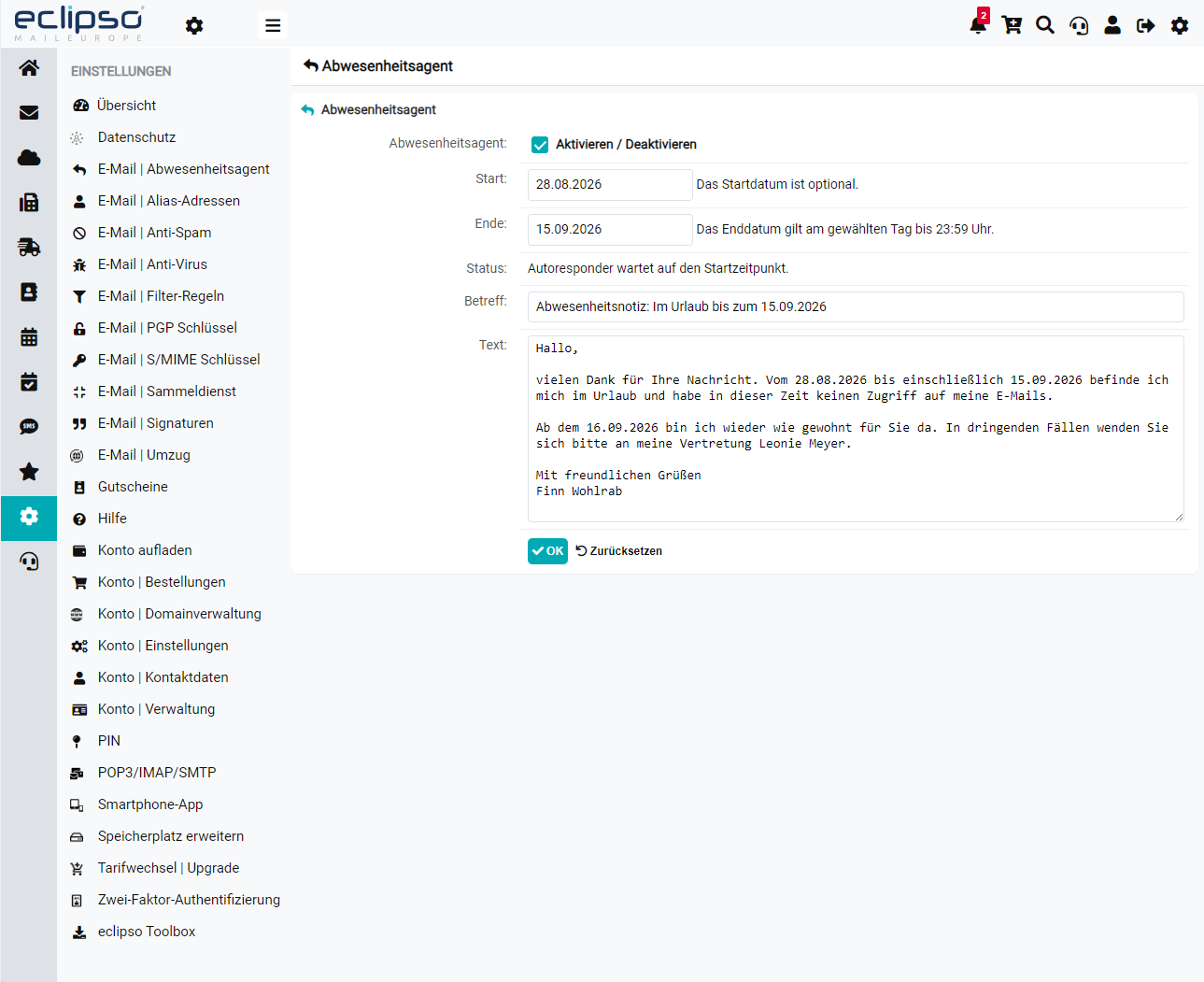
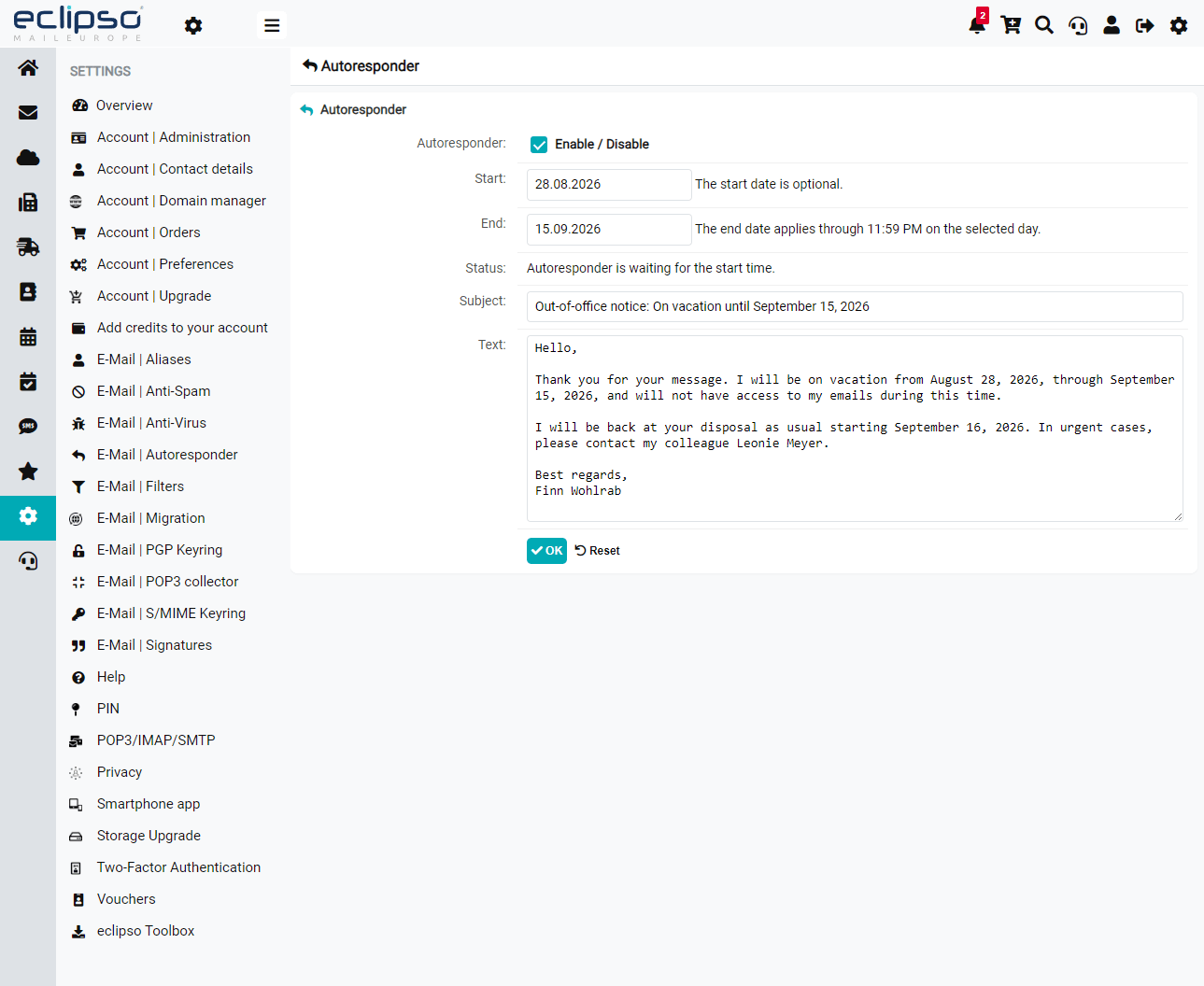
In the desktop version, open Settings > E-Mail | Autoresponder. Enter a meaningful subject and your out-of-office message. Optionally add a start date and enter the desired end date. Then enable the out-of-office agent and save with OK.
The dates are evaluated according to the time zone used in your account. The settings also show whether the autoresponder is inactive, currently active, scheduled to start later or expired.
What do I need to know about the end date?
The end date includes the selected day in full. For example, if you enter 31 August as the end date, the autoresponder can remain active through 31 August. From 1 September onward, no automatic replies are sent.
Can I disable the autoresponder at any time?
Yes. Under Settings > E-Mail | Autoresponder, untick the activation checkbox and save the change with OK. No dates need to be entered to disable the autoresponder.
Automatic replies continue to be sent with consideration for the recipient. To protect against mail loops and unwanted message traffic, the autoresponder does not reply to certain automated messages or emails marked as junk, for example.
A practical tip for your out-of-office message
Keep your message brief and state the period of your absence. If possible, also provide an alternative contact person and their contact details. This gives your senders the most important information at a glance.